How we buy things, who approves them, and how the money is checked.
A short guide for everyone who raises, approves or pays.
Revised 24 October 2026
Trainer: Press N to hide these notes. Arrow keys or click to move. Ask the room who has ever chased a payment and not known where it was — that is the problem this solves.
Why we have this
Every cedi needs a story
The school spends money that belongs to parents and to the institution.
For every payment we must be able to answer four questions, months later,
without relying on anyone's memory.
Who asked for it?
Named, dated, recorded.
Who approved it?
The right person, in the right order.
Was there budget?
Checked before the money moves, not after.
Did we receive it?
Confirmed by someone who saw it arrive.
Trainer: The system is not there to slow people down. It is there so nobody has to defend a payment from memory a year later.
The whole picture
Four stages, and one side entrance
Approvals happen between the stages. Nothing moves forward until the step before it is confirmed.
The links close behind you — that is not a fault
Each stage hands you a link to the next, alive only while it is needed. Once an
expense is paid in full its payment link stops working; a part-paid expense
keeps its link, because the balance still has to be paid.
So a link that "no longer works" is usually the system saying this is
finished, not something is broken. Read the message on the page.
Trainer: Spend time here. Everything later is a detail of this one diagram. All four stages are in service — if anyone was trained on an earlier version that showed Stage 4 as "Coming soon", correct it out loud. The green box matters more than it looks: "the link is broken" is the support call this prevents. A payment link stops working once the expense is settled, and that is the design, not a fault.
The same four stages, on the real screen
You are never asked to remember where you are
The portal carries this strip at the top of every stage.
It is the diagram you have just seen, showing your actual transaction.
1234
1Approved — this stage is done and cannot be re-opened casually.
2Approved — the Expense was approved, which is what released Payment.
3Current stage — where the transaction is sitting right now.
4Locked until approved — not broken, not missing. Stage 4 opens when Stage 3 is done.
GIS Procurement & Payment portal, captured 31 August 2026.
Trainer: The word to land is LOCKED. Almost every "the system is not working" call at this
stage is somebody looking at a locked stage and reading it as a fault. It is the control: a stage cannot start until the one
before it is approved. Point at box 4 and say it plainly — nobody has done anything wrong, and there is nothing to fix.
The one rule behind everything
A door that checks
Before any stage opens, the system goes and asks: did the previous step really get
approved? It does not trust the link you clicked, or the email, or what the screen
said a minute ago.
If it cannot confirm an approval, it refuses. Silence is never treated as a yes.
Trainer: This is why a link can look fine and still not open. It is not a broken link — it is the check doing its job.
Who does what
Three jobs, three colours
You will see these markers on every step from here on.
Requester
Anyone raising a request — a teacher, a head of department, an office administrator. You describe what is needed and why.
Approver
The manager or post-holder who says yes. Approvals are recorded against your name and cannot be given by the person who asked.
Finance
Reviews, checks the budget, and makes the payment. Finance sees the money side that others do not.
One important habit
Your role decides what you can see, not just what you can do.
A requester sees their own requests. A manager sees their department.
Finance sees the money.
If a page says you may not see something, that is a setting on your account —
not a fault. Ask Finance & Procurement to review your access.
Trainer: Worth stressing that seeing less is deliberate. People often report it as a bug.
Choosing your route
Do I need a Purchase Requisition?
If you are choosing what to buy, you need a requisition. If the cost was always coming and there is nothing to choose, it is a Direct Expense.
Trainer: The single sentence in the gold box is the test to remember. Everything else is examples.
Requester
Stage 1
Purchase Requisition — may we buy this?
Pick your budget line from the Request tools panel. Your department fills in automatically, and — if you are signed in — you see what is left on that line.
Search the catalogue for what you need. Add each item with a quantity, a specification and when you need it.
Name the project or event and give your best estimate of the total.
Press Insert into form — everything you chose drops into the form on the right, with your name and email already filled in if you are signed in.
Submit. It goes to the approvers for your section.
Trainer: Demonstrate this live if you can. The panel filling the form is the part people find surprising.
Stage 1 · why a catalogue
Why you cannot just type it
An item typed freely is an item nobody can report on, compare on price, or control.
The catalogue gives every purchase a name the whole school agrees on.
Each department has its own approved list
Prices and history can be compared across years
Finance can see what the school actually buys
If your item is not on the list
Do not force something close. Ask Procurement to add it, or raise it as a catalogue exception — there is a proper route and it takes minutes.
What you will see
The search only offers items approved for your department. If you cannot find something you expected, that is usually why.
Trainer: Expect pushback here. The honest answer is that free text is how spending becomes unreportable.
The one field people get wrong
Two fields, two different questions
Your department
Select Section / Department
Where the money comes from. Fills in from your budget line.
Principal's Office
Who approves
Select Section or Department for Approval
Which post-holder this goes to for a decision.
Principal's Office — authorised approver
Example only. Choose the approver the
form actually lists for your section — names change, and the form is the authority, not this slide.
They look similar and they are not the same. The system never fills in the approval one for you —
choosing somebody's approver for them is a decision, not a convenience. Check both before you submit.
Trainer: This genuinely causes stalled requests. Two minutes here saves support calls.
Stage 1 · before you leave the form
Save is not Submit
The form has two buttons. Save keeps a draft you can come back to — it sends
nothing to anybody, and your approver never sees it. Submit is the one that starts
the approval.
“I filled it in and nothing happened”
Almost always Save rather than Submit. Nothing is lost — open the
requisition again and press Submit. Nobody was waiting on it, because nobody had been told.
Specification and timeline go in the panel
Anything you type in the Request tools panel is put back every time
Insert refreshes the form. Anything typed straight into the form’s table is lost on the next
Insert. Attach a picture after your last Insert — an attachment is the one thing
Insert cannot restore.
Your estimate becomes the ceiling
When your approver approves the requisition, the Estimated Total Cost
becomes the ceiling the invoice is measured against. Above it, the Expense form will not submit until
the same approver grants an exception. Estimate realistically, not hopefully.
If your section is not in the approver list
Do not pick the nearest name. Tell Finance & Procurement: the list is
configuration, and choosing somebody else’s approver sends your request to the wrong desk.
Trainer: Say the Save/Submit line twice. Somebody who presses Save and waits will
assume the system swallowed their request; nothing was ever sent, and the fix takes ten seconds. Added
7 September 2026, after the live form was re-read for the tutorial recording.
Requester
Stage 2
General Expense — here is the actual bill
Your approval email carries a link. It opens Stage 2 only after the system confirms the approval really happened.
Attach the invoice. Nothing proceeds without supporting evidence.
Pick the vendor from the lookup — you do not type their bank details, and you will not see them. Finance adds them from the approved supplier register.
Enter the real amount — it may differ from your estimate, and that is fine.
Confirm the budget line the cost should sit against.
One requisition, several Expenses, up to its approved amount. My Requests shows what is left. When it is used up, the requisition's approver can grant an exception, or you raise a new requisition.
Why you never type bank details
Bank details are not taken from the invoice. An invoice is a document
the payee sends you — if the account number on it were wrong, or altered in transit,
the school would pay the wrong account and everything would look perfectly normal.
So the account paid is the one on the approved supplier register,
filled in by the system after you submit. You choose who; the register decides
where the money goes.
If a supplier tells you their bank details have changed, send them to Procurement.
Never put them on an expense form.
Trainer: This slide changed on 25 Aug 2026. It used to say "enter their bank details as they appear on the invoice" — which is the commonest route to paying a fraudulent account, and staff were being taught it. Say that plainly: the rule changed because the old one was a risk, not because someone preferred a different screen. Also worth saying: the typing protection is still there, it just no longer needs a slide of its own. Added 10 Oct 2026: the requisition's approved amount is now a hard ceiling (Finance Manager's decision, 9 Oct). If the invoice is more than the requisition has left, the Submit button disappears and a red notice explains why; the fix is an exception from the requisition's approver, or a new requisition — never a second Expense to split the amount.
RequesterFinance
The side entrance
Direct Expense — costs with nothing to choose
Six approved categories. Each needs its own evidence attached.
Category
Typical example
You must attach
Utilities
The monthly ECG electricity bill
The bill or invoice
Property & Rent
Rent on a leased property
Contract or lease, plus the demand note
Taxes & Statutory Charges
A statutory assessment
The statutory notice
Staff Costs & Welfare
An approved staff claim
The approved claim or authorisation
Recurring Contracted Services
An ongoing service under contract
Contract or engagement letter, plus invoice
Reimbursements
Paying someone back
Receipt, plus the prior authorisation
Being on this list is the reason no requisition is needed — so you do not have to write an explanation.
Choosing the honest category matters more than ever, because the category is the justification.
Trainer: If none of the six fits, there is a seventh option — "category not listed" — and that one does require a written explanation and an exception approval.
Direct Expense · the boundary
What this route is not for
Direct Expense exists for costs that arrive whether or not anyone decided anything.
The moment there is a choice — which supplier, which model, how many — it belongs
in a Purchase Requisition.
Using it to skip a requisition is not a shortcut. It removes the comparison
step that protects both the school and you.
Yes — Direct Expense
The electricity bill. The quarterly rent. A statutory charge. Reimbursing a teacher for an approved purchase.
No — needs a requisition
Twenty laptops. New furniture. A consultant for a one-off project. Anything where you chose between options.
Trainer: Make clear this is a policy line, not a technical one. Finance will ask about anything that looks like a choice.
Approver
Between every stage
Approving — what you are actually confirming
The requester had the authority to commit this spend.
The account code is right for what is being bought.
There is budget to cover it.
The vendor details are current and documented.
Your approval is recorded against your name with a date, and the request is
routed to the post-holder for that section — not back to whoever raised it.
If you change your mind later
Editing an approved request sends it back through approval again.
It is not a quiet amendment.
That is deliberate: if the amount, the vendor or the department changed after
you approved it, somebody should look again.
The card will go back to Not confirmed until it is re-approved.
Trainer: Approvers should expect to see requests return to them after an edit. It is the control working, not a glitch.
Finance
Stage 3
Payment — and the four promises
The same bill cannot be paid twice
Every payment is checked against everything already paid for that expense.
You cannot pay more than was approved
Payments are added up. Going over the approved amount is refused.
If it cannot check, it will not pay
An unreadable record is never treated as "nothing found". It stops and asks for a human.
A half-finished payment is never called a success
If the money moved but the record did not, it is flagged for reconciliation.
Trainer: Back-office audience mainly. The point is that the system would rather stop than guess.
DepartmentIn service
Stage 4
Receiving & Closure — confirming it arrived
The last step closes the loop: somebody who saw the goods or the service confirms it arrived, records the quantity, and the transaction is closed.
A Goods Received Note for physical items
A Service Received Note for work done
Partial deliveries can be recorded honestly
This step is yours
This stage is in service — requests are paid, received and
closed through it.
If you are the person who saw the goods or the service arrive, confirming
receipt is your step. A paid transaction nobody confirms stays open —
money out, with nothing recorded as received.
Trainer: If anyone was trained on a version that showed this stage as not yet in service, say plainly that it changed. The point to land: Paid is not finished until somebody who saw it arrive says so.
Reading the screen
What the four cards are telling you
Across the top of every page you will see the four stages, each with a label.
Label
What it means
What to do
Approved
This stage was confirmed. You may move on.
Nothing.
Current stage
This is where the transaction is now.
Your turn, if it is your job.
Not confirmed
We could not confirm an approval. It does not mean rejected.
Check whether the approval is still pending, or was edited.
Blocked
Something specific is stopping it, and the screen says what.
Read the reason and fix that one thing.
Locked until approved
A later stage that has not been reached yet.
Nothing — it opens when its turn comes.
"Not confirmed" is the one people misread. The system only ever knows that it could not confirm an approval — it never claims your request was refused.
Trainer: Have this slide open during hands-on practice. It answers most "what does this mean?" questions.
When something stops
The common refusals, in plain English
What you see
What it actually means
"This must start with a Purchase Requisition"
The system thinks you are buying goods or services on the Direct Expense route. Raise a requisition instead.
"Supporting evidence is required"
The invoice or document for that category is missing. Attach it and resubmit.
"Select an approved Direct Expense category"
The category chosen is not on the approved list.
"No budget line has been set up for this department and code"
Not a zero balance — the line does not exist. Finance must create or correct it.
"There is not enough confirmed budget"
The line exists but will not cover this. Needs an approved budget exception.
"The budget position could not be confirmed"
The system could not read the budget. It refuses rather than guess. Report it — do not just retry.
"Please state why a Purchase Requisition was not used"
You are on the "category not listed" exception path, which does need a written explanation.
"This form must be opened from the portal"
A saved or emailed link. Start again from the portal.
No Submit, red note about the requisition
The invoice is more than the requisition has left. Its approver can grant an exception — never split the bill.
Every refusal names the one thing to fix. If a message does not make sense, send a screenshot to Finance & Procurement — an unclear refusal is a fault worth reporting.
Trainer: Encourage reporting confusing messages. Wording is treated as part of the system, not decoration.
A worked example
The electricity bill, start to finish
Trainer: This is a real case. It was once blocked for not having a written justification, which is why the rule changed.
Signing in
Sign in first — then raise your request
From go-live you raise requests signed in, with your school email address.
That is what ties a request to you.
Press Start a Purchase Requisition on the portal. Signed out, the page says
Sign in to raise a request — sign in and the form opens.
The budget check still runs: above the line, Submit will not
appear until you request a budget exception. The balance you see is informational —
a dash never means zero.
Always start from the portal: a saved or emailed form link has
no Submit button.
Signed in, you get
Your name and email filled in for you on both the
Requisition and the Expense form — check them. Plus the live balance, My Requests,
and your department's view if you manage one.
“Your account cannot raise requests yet”
No Requester role yet — an access setting. Contact Finance & Procurement, not IT.
Trainer: Rewritten 22 Oct 2026. Until 1 November this slide was the opposite ("you can raise a
request without signing in"); if anybody was trained on the old version, correct it out loud. The switch is
REQUIRE_SIGN_IN_TO_REQUEST — if you train before Finance turns it on, the portal will still let a signed-out
person in; say that the rule applies from go-live. Three different screens, three different fixes: Sign in to raise
a request (sign in), Your account cannot raise requests yet (an administrator grants Requester), and
could not be confirmed (reload; report it if it persists — it never means "you are signed out").
Where to go
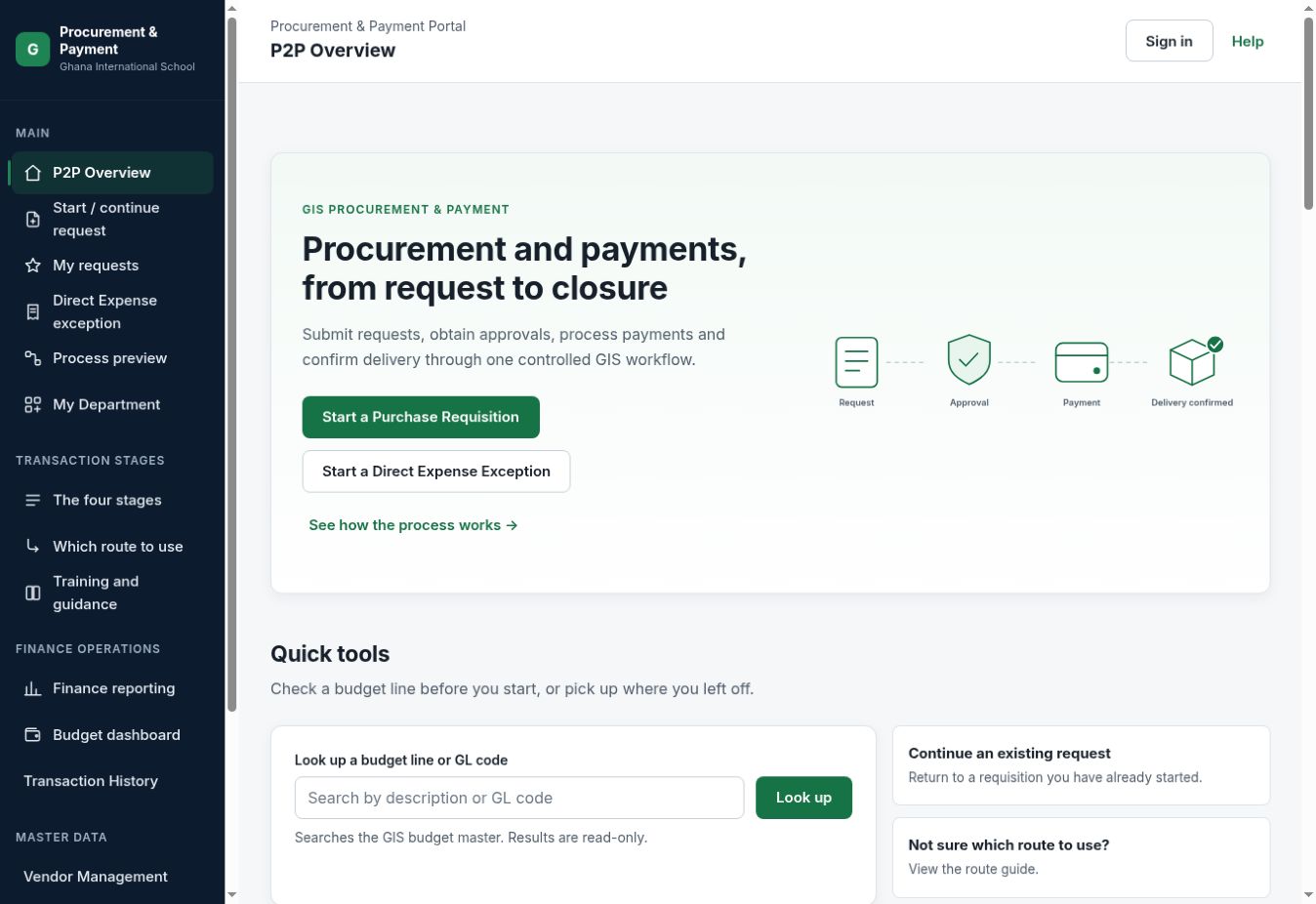
The front door
This is what opens when you go to the portal. Everyone
can reach it, and everything you need to start is on this one screen — sign in before you raise a request.
1234
1Start a Purchase Requisition — the normal route. Use this
when you want to buy something.
2Direct Expense exception — only for the approved
categories on the next slides. Not a shortcut.
3Look up a budget line before you start. Finding the line
works signed out; seeing what is left on it needs a sign-in — though the form
will still stop you if you exceed it.
4Sign in — needed to raise a request from go-live.
It fills your name and email in for you, shows you the balance, and adds your own areas.
Captured 31 August 2026.
Trainer: Open the real page beside this. The two things people miss are 3 and 4 — that they
can find their budget line before committing to anything, and that from go-live they sign in before raising a
request (updated 22 Oct 2026; until then this slide said signing in was optional). Since 2 Sep, signing in also fills in name and email on both
forms, from the staff directory rather than from anything they have typed before — worth showing, because it is the
most immediate reason to bother signing in.
The pages you will use
Page
Who
What it is for
Overview
Everyone
The front door. Start a request, see where things are.
My Requests
Everyone
Your own requests — the first place to look for where something has got to. See the next slide.
My Department
Managers
Your department's transactions and budget in one place.
Budget Dashboard
FinanceManagers
Balances across budget lines — for the departments you are authorised to see. School-wide only where that has been granted.
Transactions
Finance
The full register, and the history of any one transaction.
Vendors
Finance · Procurement
Supplier records, verification and approval.
Item Catalogue
Finance · Procurement
What the school may buy, and by which department.
When you are signed in, the menu leads with the areas your permissions actually cover; areas you cannot use may be
hidden or played down. Every protected page still checks your access when you open it, so a visible link never
overrides that check. If you need access you do not have, an administrator has to update the role attached to the
same email address you sign in with.
Trainer: Walk the menu live. People orient far faster from the real thing than from a list.
My Requests has its own slide next — open it there rather than here.
Following your own work
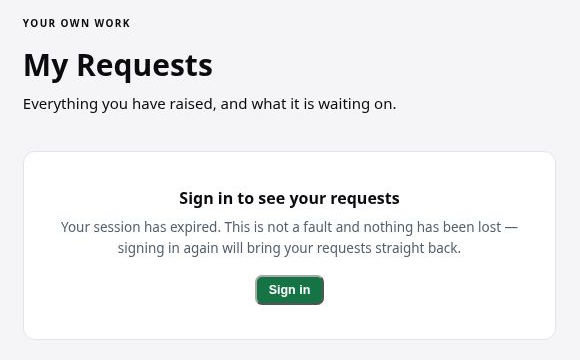
My Requests — follow what you raised
One page that answers “where has my request got to?” without asking anybody.
You must be signed in: it works out what is yours from who you are signed in as.
Shows the reference, the current stage, the
status and the latest movement.
Shows only what you raised — never anybody else's requests.
Open the reference to see the history available for it.
A requisition shows what is left on it, and Raise another Expense.
Older requests from an emailed form link: follow the workflow emails and the
transaction view.
1
1It tells you which thing is true — signed out, nothing
raised yet, or could not be read. Never a blank page. Captured 31 August 2026.
Returned to you? Correct it here
It reads Needs you · Returned for correction, with the reason.
Press Correct & resubmit: your request opens in the portal with your answers
kept. Change what was asked; do not raise a new one. Started it from the portal and not here yet? Give it an hour —
an empty page is not a lost request.
Trainer: Updated 22 Oct 2026. Open it live. It lists what the signed-in person started from
the portal (Start / Continue Request) since 30 August. Since 15 Oct a bookmarked or emailed Jotform link opens with no
Submit button, so "raised outside the portal" now only describes older requests — point those to the workflow emails
and the transaction view. Show a returned request if you have one: Correct & resubmit opens Jotform's edit
view inside the portal with the stored answers; a second, new request is the mistake to prevent. New rows appear within the hour. The sentence for the room is the last one — an empty page is not a
lost request. Without it, the first person to look will conclude their requisition vanished and raise it a
second time.
Habits worth having
Six things that will save you time
Attach the document first
Most refusals are a missing invoice.
Check both department fields
Yours, and the one that chooses your approver.
Read the refusal before resubmitting
It names the single thing to change.
Edit only when you mean it
An edit restarts approval.
Pick the honest category
On Direct Expense, the category is the justification.
Report anything confusing
A message nobody can act on is a fault, not your mistake.
Trainer: Close the teaching here. The last slide is for questions.
Questions
If something refuses you and the reason does not make sense, send a screenshot.
We would rather fix the wording than have you work around it.
GIS Finance & Procurement
Trainer: Collect the confusing-message reports. They are the cheapest improvements available.
Watch the walkthrough
The same journey, on the live screens
Recorded on the portal itself. Watch before the session, or again afterwards — the videos stay on this slide and on the Overview page.
P2P System — the upgraded Jotform process, end to end For everyone: what the portal is and how a request travels from requisition to payment.Open on Google Drive →
General Expense — raising the bill against an approved requisition For requesters and approvers: the General Expense stage, step by step.Open on Google Drive →
Trainer: Play the first two minutes in the room if time allows; otherwise point at the Overview page, where the same videos sit under “Tutorial videos”.
 1
2
3
4
1
2
3
4
 1
2
3
4
1
2
3
4
 1
1