Ghana International School
Your department's money,
on one screen
For heads of department, budget holders and approvers. What the live figures mean, how to read them safely, and what they cannot yet tell you.
Revised 24 October 2026
Where you come in
Your department's money makes one journey — and touches you three times
Before anything else
Getting in — once, with your school address
- An invitation arrives from the portal, addressed to your school email. Accept it and choose a password. Nobody will ever ask you for that password — not Finance, not IT, not the assistant.
- Sign in from the button at the top right of any portal page. The same address every time: your access is attached to it.
- Check the corner. Signed in, your name and your role appear — Department approver for a head of department. If it says nothing, or the wrong role, that is an access setting to fix before you go further.
- Look at the menu. It already shows only the areas your role can open. What you do not see is not hidden from you by mistake; it is not yours.
From go-live, everyone signs in to raise a request — you and your staff. Signing in is also what gives you your department: the figures, the activity, and your name filled in on the forms.
What changes for you
Three things you can now do yourself
See your position without asking
Approved, spent and remaining on every budget line you hold — refreshed each time you open the page, not a monthly emailed sheet.
Answer "where is it?" in seconds
Every request from your department, what stage it is at, who is holding it, and when it last moved.
Review the facts before you approve
The budget line, the amount and the evidence are on one screen. Use My Department to review the position and the history, then complete the decision in the Jotform task assigned to you — the portal shows you the facts; it is not where the approval is recorded.
And one thing to be honest about
There is no approval inbox yet. Requests still reach you by email from the workflow. The portal will tell you how many items are awaiting action — it cannot yet give you a clickable queue.
It is better you hear it now than go looking for a list that is not there.
Your access
What opens for you, and what will not
OPENS
| My Department | Your budget and activity in one place |
| Budget Dashboard | Your budget lines, scoped to you |
| Transaction view | The full history of any transaction in your department |
| Start a request | The same forms everyone uses — with your name and email filled in for you |
| My Requests | What you raised yourself — anything you started from the portal while signed in |
NOT YOURS — AND NOT SHOWN TO YOU
| Finance Reporting | School-wide register — Finance only |
| Vendors | Supplier records and banking |
| Item Catalogue | Maintained by Procurement |
| Pending Reviews | Master-data change queue |
| Administration | Access and imports |
Once you are signed in, the menu shows only the areas your permissions cover. The list on the right is not a set of links you will see and be turned away from — they are simply not on your screen. Every protected page still checks your access when you open it, so hiding is tidiness, never the control itself. If you need access you do not have, an administrator must update the role attached to the same email address you sign in with.
One exception, so it does not surprise you: for a moment while a page loads — or if your permissions cannot be read at all — the menu briefly shows everything. That is deliberate. A portal that hides itself when something is broken looks like a portal that is broken.
My Requests lists what you raised yourself. A request counts as yours when you started it from the portal — Start / Continue Request, while signed in. One opened from a saved or emailed Jotform link is not tied to your sign-in and will not appear there; follow those through the workflow emails and the transaction view. New rows appear within the hour.
If you hold a school-wide role — Vice Principal, Principal or Finance Manager — the same page opens as Budget Oversight instead of My Department, with extra tabs covering every department. Everything in this deck still applies; you simply see more than one department.
Approving · how it reaches you
A request arrives by email, from the workflow
- 1Why it came to you. The requester chose your section in Select Section or Department for Approval. The system never chooses an approver for anyone; a person did.
- 2View Task opens the approval itself, in Jotform. Go to Inbox lists everything waiting on you there.
- 3Check the facts first — in My Department: the budget line, what is already in payment, and the request's own timeline. Then decide.
If it should not be yours — wrong section, or somebody else's post — do not approve it to be helpful. Deny it with a comment saying whose it is, so the requester can resubmit to the right approver.
Approving · the decision
The approval task — two buttons, one comment, three consequences
| You press | What happens |
|---|---|
| Approve | The requester is emailed. The next stage unlocks — stage two if this was the requisition, Finance's payment if this was the expense. The portal card reads Approved. |
| Deny | The requester is emailed that it was denied and told to contact Finance. Nothing unlocks. The portal card reads Not confirmed — the portal never says "denied"; it only knows it could not confirm an approval. |
| Comment | Goes with either decision and is the only place your reasoning is recorded. A denial without a comment is a dead end for the requester. |
"Not confirmed" also shows while it is still waiting for you. A requester cannot tell pending from denied by looking at the card. Your comment — and the email — are what tell them.
Approving well
Four checks, and one consequence
Before you approve
- Authority — was this person entitled to commit this spend?
- Account code — is it the right line for what is being bought?
- Budget — remaining, minus what is already in payment
- Vendor — current and documented
Editing after approval
An edit to an approved request restarts the approval — including yours. The card returns to "Not confirmed" until it is approved again.
That is intended. If the amount, vendor or department changed after you signed it off, somebody should look again.
Editing something already paid does not change the payment — it raises a reconciliation item for Finance.
"Why did my staff member's request go to the Vice Principal?" Because the amount was more than the budget line holds. The form stops them, they choose Request budget exception, and that exception is decided by the VPA — not by you. Your approval still happens afterwards, on the request itself.
"The Expense form will not let me submit." The invoice is more than the requisition you approved has left. That decision is yours: grant an exception on the requisition's page in Transaction History — or ask for a new requisition. Never let a bill be split.
My Department
The anatomy of the page
My Department
The numbers at the top
| Label on screen | What it actually counts | Use it to |
|---|---|---|
| Budget approved | The approved amount on every budget line in your current view | Know your ceiling |
| Actual spend · working figures | Approved minus remaining, including any Before go-live spend. A working figure, not the certified ledger | See what has actually gone |
| Committed | Reads “Not yet activated”. Commitment accounting is built but switched off, so no number is shown — and none is invented as zero | Nothing yet |
| Remaining | What the line still holds today | Judge capacity — but read "Remaining" does not know what you have approved first |
| Utilisation | Spend as a percentage of approved | Spot lines running hot |
| Transactions | How many requests are visible to you in this view | Sense of volume |
| Awaiting action | How many are still waiting on somebody | Find the backlog |
| Completed | Transactions minus awaiting action | See what is finished |
Not every filter touches every number. Department, budget line and search narrow the budget-line figures — approved, spend, remaining, utilisation. Stage and date filters apply to transaction activity only.
So narrowing to one month does not shrink your approved annual budget: an approved budget is a position, not something that happened in March. Read the filters that are active before you quote or export a figure — budget exports follow the budget-line scope, activity exports follow the transaction filters.
The most important slide in this deck
"Remaining" does not know what you have approved
Approved money is not reserved. Approving a request does not reduce a budget line; only a payment actually made does (a virement or an opening balance also moves it, and each is recorded). Requests you have approved but Finance has not yet paid are not held back from the balance.
So the same money can look available twice. Approve two things in the same week and the line will show room for both until one of them is paid.
How to read it safely
Take Remaining, then subtract the In payment figure from Spending in flight. That is your real headroom.
Spending in flight
The four buckets, and what each one owes you
Requisitions
Asked for, not yet turned into a bill. No amount attached yet — an estimate is not a commitment.
Expenses
A real invoice exists and is moving through approval. Still no confirmed amount against the line.
In payment
Approved and heading to Finance. These carry real approved amounts — this is the figure to subtract from Remaining.
Paid
Money has moved and the budget line has already fallen by this much.
Amounts in different currencies are never added together. If your department has a non-cedi cost, you will see a separate subtotal for it rather than one blended number.
A worked example
One request, four frames — watch which number moves
Frame 2 is the trap. You approved 12,000 and Remaining did not move. Approve another 30,000 that week and the screen will show room for it. Your real headroom was 28,000 the moment you pressed Approve.
Budget lines table
Status, and the two flags that are not statuses
Health of a line
| Healthy | Comfortable headroom |
| Watch | Getting tight — plan the rest of the year |
| Critical | 80% or more used. Expect questions before approval. |
| No balance set | Finance has not initialised this line |
Not started
The line exists and has an approved amount, but no opening balance was ever set. It is not a line with zero spending — it is a line nobody has switched on. Tell Finance.
Imported figure
The remaining balance looks like an artefact of the data import rather than a measured figure. Treat it as unverified until Finance confirms it.
A principle worth understanding
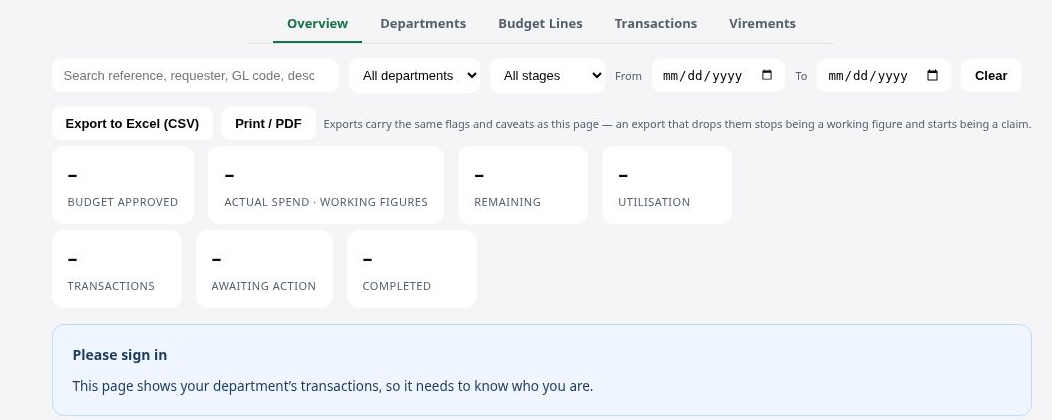
A dash is not a zero
Where the system cannot measure something, it shows — and says why. It will not print GH₵ 0.00 unless zero is the measured truth.
A zero is a claim about money. "We could not read this" and "there is nothing here" are different facts, and a manager should never have to guess which one they are looking at.
 1
2
1
2
- 1Every figure shows —. Not one of them shows GH₵ 0.00, because nothing here has been measured yet.
- 2And it says why: “this page shows your department’s transactions, so it needs to know who you are”.
My Department without a session, captured 31 August 2026.
Demo rows
If you see rows marked DEMO
When a department has no real transactions at all, the page may show a few clearly labelled sample rows so the layout makes sense — with a banner saying they are fiction.
- Every reference begins DEMO-
- A banner states plainly that they are not real
- They disappear the moment one genuine transaction exists
Never quote a demo figure
They exist so an empty page does not look broken during training and setup. They are not your department's money.
If you see them after go-live and you know you have had activity, that is worth reporting — it means your transactions are not reaching the report.
Budget Dashboard
The same money, arranged for scanning
Illustration with sample figures — not a department's real position.
What it adds over My Department
- Every line ranked by how hard it is being used
- A single early-warning count: lines with under a fifth left
- Click any line for its approved, spent and remaining detail
- Approved against remaining, charted by line
"Lines below 20%" is your standing alarm
If that tile is not zero, open the table and find which line it is — before somebody brings you a request against it.
Scoped to your departments, exactly like My Department.
Where the numbers come from
Live, and honest about which "live"
The budget page labels its own source: working figures, not the certified ledger. For day-to-day management they are the right numbers. For a formal year-end position, Finance certifies separately.
Reading money correctly
One currency standard, everywhere
| Where | How it appears |
|---|---|
| On screen | GH₵ 1,250.00 |
| In an export or formal document | GHS 1,250.00 |
| When a value cannot be read | — |
Always two decimal places. Never GHC, GH¢ or a bare "Cedis". If you see one of those, it did not come from this system.
Exports keep the number clean
CSV amount columns hold plain numbers with a separate currency column — so your spreadsheet can add them up without stripping symbols.
Mixed currencies are never blended
A cost in another currency keeps its own currency and gets its own subtotal. You will never see two currencies silently added into one figure.
One transaction, in full
The history you can pull up in a meeting
Click any reference and you get its whole life: who raised it, who approved it, when the budget moved, and whether anything was returned or reversed.
- Header facts — requester, department, project, budget line, date raised
- A timeline — submitted, approved, returned, rejected, paid, reversed, each with a time and a name
- Bank details are never shown here, whatever your role
"Immutable record"
Every event was captured as it happened. Nothing here can be edited or deleted afterwards — including by an administrator.
"Partly reconstructed" / "Reconstructed live"
Some events were rebuilt from the workflow rather than captured at the time. Still useful — but say so if you are quoting it as evidence.
You can open any transaction in your own department. Requests you raised for another department stay visible to you too.
Taking figures into a meeting
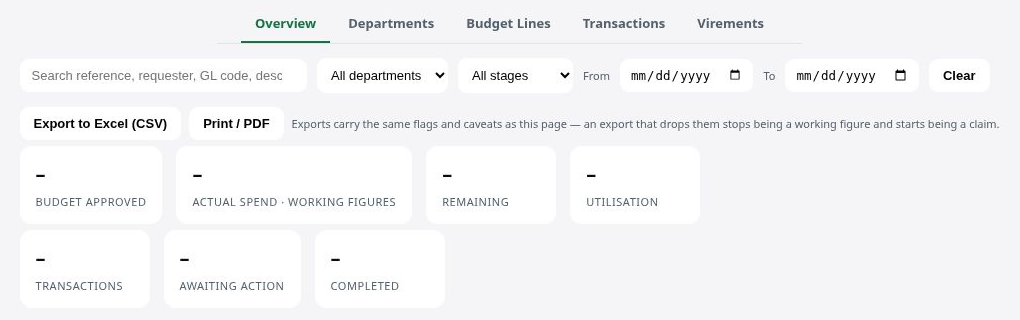
Filter first, then export — and keep the caveats on
 1
2
3
4
1
2
3
4
My Department toolbar, captured 31 August 2026.
- 1Narrow first. Search, department, stage, dates. A Filtered view stamp appears on the page while any filter is active — if you see it, your export is a slice, not the whole.
- 2Export to Excel (CSV) gives clean numbers: amounts in one column, currency in another, so a spreadsheet can add them without stripping symbols.
- 3Print / PDF for a dated page to table at a meeting.
- 4The flags travel. Working figures, Imported figure, Not started appear in the export exactly as on screen. Strip them and "the numbers from the system" become a claim the system never made.
Budget exports follow the budget-line filters; activity exports follow the stage and date filters. A month filter gives you a month of activity — never a month's budget.
Who sees what
My Department, and Budget Oversight
Same page, two shapes. Which one you get follows the scope the server grants you — never the title of your job.
Department Manager · Budget Holder
You see My Department: the departments you are authorised for, and nothing else. Holding a senior title does not widen this by itself, and there are no tabs — the page is exactly as the rest of this deck describes it.
Finance Manager · VPA · Principal
Where school-wide scope has been granted, the same page opens as Budget Oversight, across five tabs:
Overview Departments Budget Lines Transactions Virements
Two extra figures appear: Departments, and Committed — which reads “Not yet activated”.
The Virements register may legitimately be empty. An empty register means no posted virements, not a fault — and it does not list virements awaiting approval, because the portal has no source for those yet.
Moving money between lines
Budget Virement — the controlled route
If a budget line will not cover what your department genuinely needs, the answer is not to overspend it quietly. Budget Virement moves budget from one of your lines to another.
- Raised by the Department Manager or Budget Holder, for lines in one department.
- Requires VPA approval. Nothing moves until then.
- Same fiscal year, same currency. The figures checked are the lines' balances at approval, not the ones on your screen.
- Both the remaining balance and the approved budget of each line move — so no line shows spending that never happened.
Four steps on the Budget Virement page
1 Choose the source line (money out). 2 Choose the destination (money in). 3 Type the amount on the page — the form fills in from it. 4 Complete the form: transfer type, justification, evidence, the confirmation tick — Submit.
After approval the source is debited first, then the destination is credited, and the Virements register records it. Reversing one is another virement, the other way.
New since your last session
Stage 4 closure is now in service
Paid is no longer the end of the line
Closure is in service. A transaction runs on from Paid to Received and then Closed.
What this changes for you
A paid transaction that never closes is one where nobody confirmed the goods arrived or the service was done — money out, nothing recorded as received. Those are the ones worth asking about, and until now you had no reason to look.
What closure needs
A receiving status and evidence — a delivery note, a signed GRN, a completion certificate. A transaction sitting at "Fully received; awaiting closure" is usually missing the evidence, not the decision, and the status line on the transaction page now names which one it is.
The next slide shows the form your department fills in, and who should fill it.
Stage 4 · your department's part
Receiving is your department's stage — not Finance's
 1
2
3
1
2
3
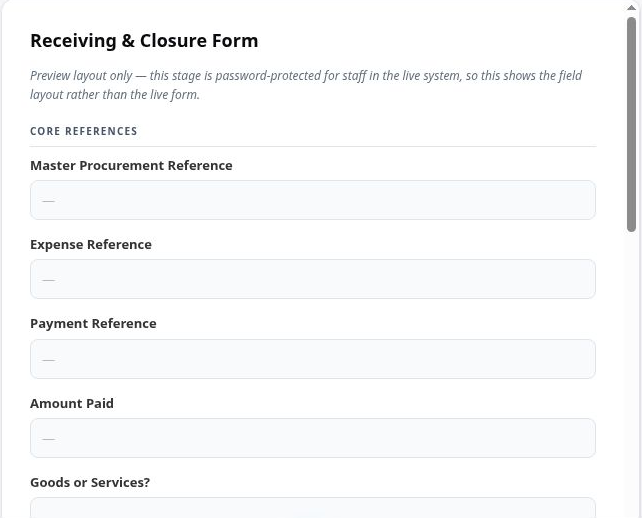
Stage 4 preview layout, captured 31 August 2026. The live form is opened from the paid transaction.
- 1The references arrive filled — master, expense, payment. Nobody types them; they come from the paid record.
- 2Amount paid is shown so the receiver checks delivery against what was actually paid.
- 3Goods or services decides the evidence: a Goods Received Note with quantities, or a Service Received Note with a completion date.
Who fills it
The person who saw it arrive or saw the work done — a receiving officer, the lab technician, the service owner. Not the person who paid, on purpose. You, as manager, make sure it happens.
Two fields finish it
Receiving status (fully received / service completed — partial delivery is recorded as partial, honestly) and a closure decision: close, keep open, or escalate an exception. Evidence must be attached; the system will not close a purchase on somebody's word.
When something looks wrong
Six things you will see, and the one thing to do
| What you see | What it usually means | Do this |
|---|---|---|
| Every figure is a dash | Signed out, the page could not be read, or the line was never initialised | Sign in; reload once; if a line says No balance set, tell Finance |
| A request from my department is not in My Department | The form's your department field named another department (that is where the money comes from), or the workflow has not reported it yet | Ask the requester which department they picked; give it an hour; then send the reference to Finance & Procurement |
| "Awaiting action" for over a week | A person, not the system — the Holder column names them; usually a task sitting in an inbox | Read the Holder, then ask that person |
| I approved it, but it still says Not confirmed | It was edited after your approval (re-approval needed), or the workflow has not reported your decision back yet | Open the timeline; if an edit is there, expect the task again; otherwise wait, then report |
| Rows marked DEMO after go-live | Your real transactions are not reaching the report | Report it with your department name — do not quote the rows |
| A staff member says the form blocked them | Every refusal names one thing: no budget line set up (Finance), not enough confirmed budget (budget exception to the VPA), budget could not be confirmed (report, do not retry) | Ask them to read the message aloud, then route it |
If a message does not make sense to either of you, send a screenshot to Finance & Procurement. An unclear refusal is a fault worth reporting — the wording is part of the system.
Help, on every page
Ask the P2P Guide — it has read this deck
A round avatar sits at the bottom right of every portal page. Click it and you can ask, in plain words, anything this deck covers. It answers from the same Guide the manuals are built from, and it is rebuilt whenever the manuals change.
It will
- Explain what a label or message means
- Tell you what an approval commits you to
- Say which pages your role opens
- Say plainly when it does not know
It will not
- See live transactions or balances
- Take, repeat or confirm bank details — ever
- Tell you a request was "rejected"
- Help anyone around a control
Nothing you type is remembered between sessions, so a shared computer carries nothing over.
A working routine
What to look at, and how often
| When | Look at | Because |
|---|---|---|
| Weekly | "Awaiting action" on My Department | Something sitting for a week is usually waiting on a person, not a system |
| Weekly | "Lines below 20%" on the Budget Dashboard | Find the tight line before a request arrives against it |
| Before approving | Remaining, minus In payment | Your real headroom, not the headline |
| Monthly | Utilisation against the month of the year | 40% used in month two is a different conversation from 40% in month eight |
| Monthly | Export the activity list to CSV | Take a dated record into your department meeting |
| Whenever asked | Open the transaction and read the timeline | Answer "where is it?" without emailing Finance |
Filter first, then export. The CSV and the print view both follow whatever you have narrowed the page to.
The point of all this
Questions you can now answer yourself
"How much is left on printing this term?"
Budget lines table, filtered to that code.
"Has the projector order been paid?"
Search the reference, read the timeline.
"Who is holding this up?"
Activity table — the Holder column.
"Can I afford this before I approve it?"
Remaining minus In payment.
"What has my department spent this year?"
Spent tile, with the date filter set.
"Which line will run out first?"
Budget Dashboard, sorted by utilisation.
Three things to take away
1 · Remaining is not headroom. Subtract what is in payment.
2 · A dash means unknown, never zero. Ask, do not assume.
3 · The timeline answers "where is it?" You no longer need to email to find out.
GIS Finance & Procurement
Watch the walkthrough
The same journey, on the live screens
Recorded on the portal itself. Watch before the session, or again afterwards — the videos stay on this slide and on the Overview page.
Executive tutorial, part 1 — approving, and reading your department
For approvers, budget holders and executives. Open on Google Drive →
P2P System — the upgraded Jotform process, end to end
For everyone: what the portal is and how a request travels from requisition to payment. Open on Google Drive →