Stages 3 and 4 — what you do, what the system refuses, and why.
Revised 22 October 2026
Trainer: This module covers only Stages 3 and 4. Every screen in this
deck was captured from the live system — none is drawn from a specification, so what people see
here is what they will see at their desk.
Where you come in
Three jobs, and one of them is new
Process a payment — record what is being paid against an approved expense.
Confirm the money left — complete Pay To Bank on the expense.
Close the transaction — record what arrived, and decide it is finished.
Closing is part of the job
A payment is not the end of the transaction. Recording what arrived, and marking the
transaction finished, is the third step — not an optional tidy-up afterwards.
Why closure matters
A paid transaction that is never closed sits in reports for ever as unfinished business.
Closure is the difference between “we paid this” and “this purchase is done, and here is
the evidence it arrived.”
Trainer: Do not skip the middle one. "Pay To Bank" on the EXPENSE
workflow is what the system treats as payment confirmation — not the payment form's own
approval. Stage 4 will not open until it is completed.
Stage 3 · the payment form
You are given a door, not a form to find
Every approved expense carries a Payment Process (pre-filled)
link. Open that. Do not search for the payment form and fill it in from scratch — a payment
raised outside the link has not been checked against anything.
What arrives already filled
Expense reference, vendor, invoice amount, currency, budget line, department, the
requester — all read from the approved record, not from the link. You cannot change them
by editing the address.
Maximum payable
A read-only figure showing what is still owed on this expense. On a first payment it is
the full approved amount; after a part payment it is the balance. It is worked out when you
click, so it cannot go stale in your inbox.
Trainer: The link carries only a reference. Every figure is fetched
fresh when it is opened. That is deliberate: a link that sat in an inbox for three days would
otherwise hand over a balance that was true on Tuesday.
Stage 3 · what the door opens onto
Two stages approved before you are asked for anything
12
3
1Both earlier stages say APPROVED. If they do not, you are
in the wrong place — a payment is only ever prepared from an approved expense.
2Payment Processing is the current stage. This is your part
of the transaction, and only yours.
3The expense reference identifies the transaction you are paying against.
It arrives with the link — you do not type it from memory, and you do not go looking for a blank
form to fill in instead.
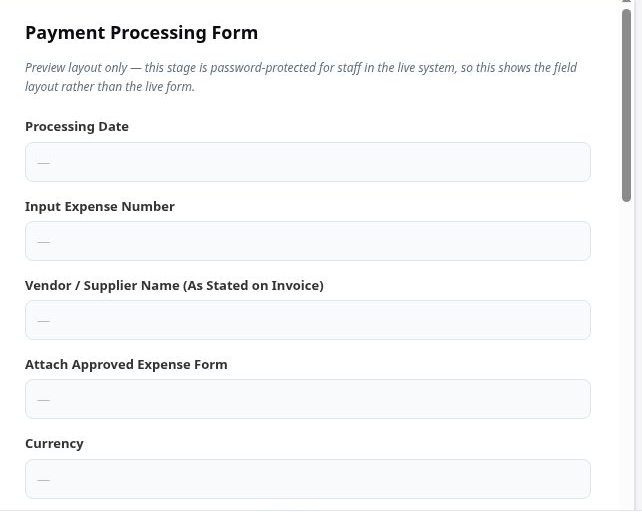
Preview of the Stage 3 layout, captured 31 August 2026. The live form is
restricted to Finance, so this shows the field layout rather than a real payment.
Trainer: Say why this is a preview and not a live capture: the real payment form is
restricted, and a training deck is not a place to put somebody's live payment on a screen. The point of the top
strip is the two green APPROVED badges — that is the evidence the expense cleared approval, and it is the one
thing worth checking before you touch an amount.
Stage 3 · finding your work · new, 31 August 2026
Your queue, without hunting through email
The sidebar's Payment Queue entry is your workstation. It answers one
question the portal could not answer before: what is on my desk, and how long has it been
there? (Accounts Payable sees the queue and Transaction History; the budget and department
reports are the Finance Manager's and the budget holders'.)
What you see
What it means
Needs action from you
Yours to move. Oldest first, with the wait in days.
Past expected turnaround
Shown in red. These have waited too long.
With someone else
Visible so you can see them — not yours to move.
It is a view, not a new way of working
You still pay from the pre-filled link, and approval still happens where it always has.
The queue shows you the work and hands you the same door.
Only approved expenses appear
A payment is only ever prepared from an approved expense, so that is the
only thing the queue lists.
On the day this was built, thirteen transactions owed money and were
deliberately left out, because Finance had not approved those expenses yet.
Something owing money and missing from here is the control working.
Trainer: Open it live and expect it to be quiet — at the time of writing
nothing needed action and four payments were sitting with an approver, two of them over forty days
old. That is a useful thing to show: this is what a stalled approval looks like. Say plainly that
an empty action list is an answer, not a loading failure; the page states it in a sentence. If a
row shows Not yet attached instead of a payment button, open the transaction record
instead — the link is written onto the expense separately and may not have caught up.
Stage 3 · reading the queue
An empty queue and a broken one look nothing alike
Three different things can be true when the queue shows you no work. The page
tells you which — and you should never have to guess.
What it says
What it means
What to do
Nothing needs action
A real answer. Your queue is clear.
Nothing. Get on with the rest.
Could not be read
An outage. The counters show a dash, not a zero.
Reload. Tell IT if it persists.
Access refused
A permission setting, not a fault.
Ask for the role, not a fix.
An unreadable queue must never look like a calm zero. A dash is not none —
it means the system could not tell you, and “no payments are waiting” would be a false statement
about money.
Trainer: This is a one-minute slide but do not cut it. The failure it prevents is
somebody glancing at a zero during an outage, concluding there is nothing to pay, and going home — which is
why the counters deliberately show a dash instead. Same rule as the budget figures in the manager deck: a
zero is a claim, and the system will not make one it cannot support.
Stage 3 · part payments
Half now, half on delivery
Pay what you are paying. The system tracks the rest.
You pay
What happens to the link
Part of the invoice
Link stays — the balance still has to be paid
The final balance
Link is retired — nothing further is owed
Equal instalments are fine
Two payments of 5,000 against a 10,000 invoice both go through. If you are told
otherwise, that is a fault — tell IT.
The link closing is not a fault
Once an expense is paid in full, its payment link stops working, and an old copy of it
will refuse with “This expense has already been paid in full.”
That is the control that stops one expense being paid twice.
It has already prevented a real double payment.
Trainer: The duplicate check matches on payment identity, not on
amount, so two instalments of the same size are fine. Worth saying aloud: if it ever refuses a
legitimate instalment, that is a defect to report, not policy.
Stage 3 · when the system says no
Five refusals, and what each one means
What you see
What it means
What to do
Submit button disappears
The amount is above what is still payable on this expense.
Check Maximum payable. Reduce the amount.
“Already been paid in full”
Nothing further is owed. The door is closed on purpose.
Nothing. If you believe it is wrong, contact Finance.
“Has not reached the required approval step”
The expense has not completed its approval chain.
Wait for the approver. Do not raise a second expense.
“Approved for more than its requisition had left”
The expense took its requisition past the approved amount (hard stop, from 10 Oct).
The requisition's approver records a drawdown exception. Then retry.
Blocked as a suspected overpayment
Cumulative payments would exceed the approved amount. Blocked after approval, at posting.
An approved override is needed — not a retry.
One thing to notice
The last one can happen after a payment has been approved by people. The
approval succeeded; the money was refused. If that happens, the payment record exists but no
money moved — tell Finance rather than approving it again.
Trainer: The overpayment block fired for real on 27 Aug — a 6,000
payment against a 9,000 expense that already had 4,000 paid. Approval had gone through; the
posting layer refused. That is the design: approval is a necessary condition for paying, never
a sufficient one.
Stage 4 · who does which part
Paying for it is not the same as receiving it
Processing the payment does not put you in a position to certify that
the goods turned up. Different people, on purpose.
Activity
Who is responsible
Prepare and process the payment
Accounts Payable
Complete Pay To Bank once the money has actually left
Authorised Finance / AP officer
Confirm physical goods were received
Receiving Officer or authorised department representative
Confirm a service was completed
Service owner or requesting department
Attach the receiving evidence
Whoever confirmed receipt or completion
Resolve financial exceptions and close
Finance or the authorised closer
One person may hold more than one of these only where GIS policy and their permissions allow it.
Whoever acts, the workflow and audit trail record who did what — which protects the officer as much as
the school.
Trainer: This is the slide people quietly disagree with, so put the reason first: the
officer who paid has no way of knowing a box arrived in a store room, and signing to say otherwise is the
exposure. If somebody objects that they do both in practice, that is a real answer — the rule is that policy and
permissions must say so, not that it never happens. Keep the tone protective rather than accusatory; separation
of duties exists to keep an honest person out of an argument they cannot win later.
Stage 4 · receiving
Two fields close a transaction
Everything else on the Receiving form is detail. These two decide whether the
transaction is finished.
4
4Payment shows APPROVED and Stage 4 is now the current
stage. This is where a transaction stops being “paid” and becomes “finished”.
Captured 31 August 2026.
1 · Receiving status
FULLY_RECEIVED or SERVICE_COMPLETED
for a clean finish.
Leaving it blank is not “fine” — the system reads a blank status
as cannot be treated as complete.
2 · Closure decision
CLOSE_TRANSACTION is the one that finishes it.
KEEP_OPENESCALATE_EXCEPTION deliberately leave it open. Use them
when that is what you mean.
And you must attach evidence. A fully-received delivery will not close
without a photograph or document. The system will not close a purchase on somebody’s word.
Trainer: This is the slide that matters. Filing a receiving record is
not the same as closing the transaction — make sure people leave knowing closure is a separate,
deliberate step, and where the field is.
Stage 4 · reading the status
“Awaiting closure” tells you what is missing
The transaction says
Do this
Paid; awaiting receipt confirmation
Complete the Receiving form
Delivery evidence is required before closure
Attach the photo or document
Awaiting an explicit closure decision
Set CLOSE_TRANSACTION
An unresolved receipt exception is open
Resolve the exception first
Closed
Nothing — it is finished
Read the sentence, not the heading
The heading tells you the stage. The sentence under it tells you the one thing standing
in the way — and it is computed from the record, not guessed.
If it names something you have already done, that is a fault
worth reporting.
Trainer: The page quotes the measured reason a transaction is not
closed, rather than a generic one. That is why the last line of the card is there: if the reason
shown does not match what is actually missing, we want to hear about it.
The habit that matters
Check the budget line, not just the screen
A screen that says a payment is done is not the same as money having
moved.
The budget line is where you see the difference.
After you process a payment
Look at the budget line and confirm it moved by the amount you paid. It takes five
seconds, and it is the check that confirms the payment reached the budget.
It is a post-payment verification, not a
replacement for reconciliation or the automated controls — it catches what those miss, at
the moment it is cheapest to catch.
If it did not move
Say so immediately, even if every screen looked correct. Report it to Finance rather
than assuming it will correct itself — the sooner it is known, the simpler it is to put
right.
Moved without a payment? A virement or a
go-live opening balance also moves a line. Both appear in the line's activity with their
reference — if neither explains it, report it.
Trainer: Do not soften this slide. Automatic checks exist, but the
five-second look at the budget line is the one that confirms the money actually moved — and the
moment right after payment is when a problem is cheapest to put right. Make sure people leave
knowing that reporting it immediately is the expected behaviour, not an escalation.
In one page
The whole job
Find your work in the Payment Queue — oldest first, red when overdue.
Open the payment from the pre-filled link, never from a blank form.
Pay what you are paying — part payments are normal.
Never exceed Maximum payable. If Submit vanishes, that is why.
Complete Pay To Bank when the money has actually gone.
Check the budget line moved.
Record receiving, attach evidence, and set CLOSE_TRANSACTION.
When something refuses you
Read the sentence on the screen. Most refusals in this system are deliberate and say
exactly what is wrong.
The ones worth reporting are the refusals that name something
you have already done — and any payment that completes without moving the budget.
Trainer: Close on the last line. The system is deliberately noisy about
refusing things; the risk is people learning to click past refusals. Tell them which refusals
are worth a conversation, and they will keep reading the rest.
Watch the walkthrough
The same journey, on the live screens
Recorded on the portal itself. Watch before the session, or again afterwards — the videos stay on this slide and on the Overview page.
P2P System — the upgraded Jotform process, end to end For everyone: what the portal is and how a request travels from requisition to payment.Open on Google Drive →
Trainer: Play the first two minutes in the room if time allows; otherwise point at the Overview page, where the same videos sit under “Tutorial videos”.
 1
2
1
2
 3
3
 4
4